Meet your Mac's new sidekick

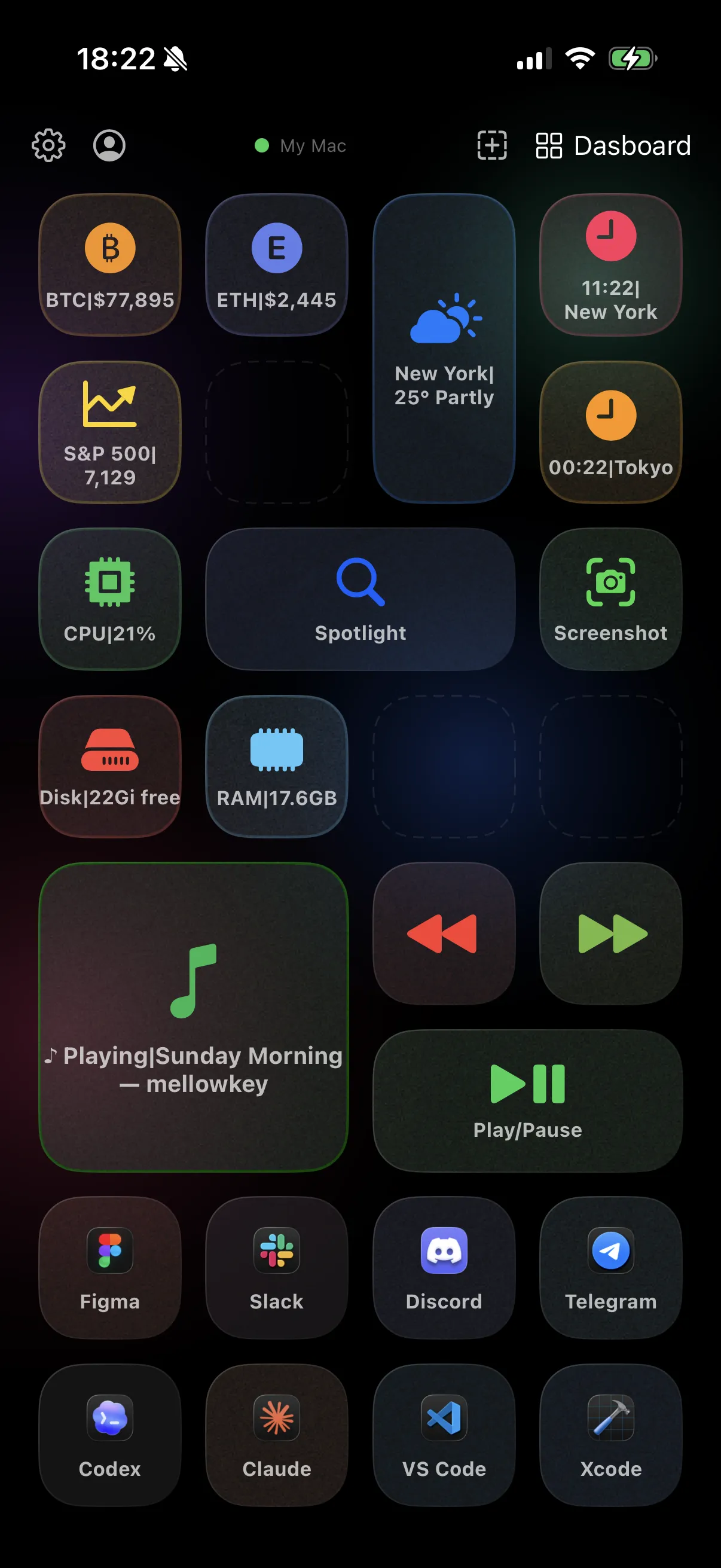
Turn your iPhone into a programmable remote for your Mac. Tap to fire hotkeys, scripts, and app launches — or pin live data straight to a button.

Desktap dashboard on iPhone
⌘ Hotkey
▶ Launch App
⚙ System
$ Shell
✦ AppleScript
◐ Shortcut
→ Open URL
¶ Snippet
01 Engineers

Ship without touching the keyboard.

  • Deploy in one tap — not in five Slack messages
  • The five git commands you type all day, on buttons
  • Tail prod logs without opening a terminal
  • Run migrations from your phone, not from finding your laptop
  • Restart that service whose name you forgot

02 Designers

Your shortcut sheet, retired.

  • Color picker, eyedropper, vector mode — on labelled buttons
  • Toggle layers, masks, UI without leaving the canvas
  • Export PSD, PNG, SVG — one tap, every preset
  • Switch tools — the buttons follow you
  • Stop memorising 200 shortcuts per tool
03 Advanced users

Your whole day, on one tile.

  • "Focus" mutes Slack, hides the dock, kills notifications
  • "Work setup" launches every app you need at 9 a.m.
  • That AppleScript from 2023 — finally one tap away
  • Caffeinate, brightness, sleep — labelled, not memorised
  • Fifty forgotten hotkeys, parked on labelled buttons
Capabilities

Built different.
Not built generic.

Eight command types. Live widgets. Context-aware pages. Multi-profile workflows. iCloud sync. An MCP server your AI can drive. Engineered for power users who don't compromise.

01

Every action your Mac responds to — now in your hand

Hotkeys, app launches, system actions, shell scripts, AppleScript, Siri Shortcuts, URL schemes, text snippets. If your Mac can do it, a Desktap button can fire it — instantly, without stealing focus.

⌘ Hotkey ▶ Launch ⚙ System $ Shell ✦ AppleScript ◐ Shortcut → Open URL ¶ Snippet
02

Buttons that breathe

A button doesn't have to fire. Some pulse — pinning a live number that refreshes on its own, glancing back when you tap.

03

Pages that read the room

Bind a page to an app once. Open Figma — your design controls appear. Switch to Xcode — the build panel takes over. Your remote thinks ahead so you don't have to.

04

A profile for every you

Work, gaming, music production, focus mode. Switch profiles like switching brains — each keeps its own pages, buttons, and logic, perfectly apart.

Work Gaming Personal
05

A grid you actually shape

4×8 on iPhone. 6×8 on iPad. Stretch a single button across cells — a media bar, a giant focus toggle, a header. The layout bends to you.

06

Your AI, in the driver's seat

Built-in MCP server. Pair Desktap with Claude Desktop, Codex, or any compatible client and your assistant becomes the configurator. Describe a workflow in plain English. Get a fully assembled page — buttons, icons, hotkeys, live data — synced to your phone in seconds.

07

Synced everywhere. Stored nowhere we can see.

Phone and Mac pair over Wi-Fi with a PIN. Profiles sync across your devices via iCloud. Nothing routes through our servers — because there are none.

Live widgets

Anything with a pulse, on a button.

Buttons don't just fire actions — they glance back. Pin any number from any API, script, or sensor on your Mac. The tile refreshes itself.

CPU42% $AAPL184.32 ▲ SF72°F NowLorde · Royals prod99.9% PRs3 open Nextstandup · 12m BTC67,420 ▼ Inbox12 unread Build#4823 ✓ Disk421 GB free Ping124 ms London18°C · rain Docker3 / 4 up !Alerts2 Battery89% EUR/USD1.0834 Focuson · 1h 24m

If it has an API, a shell script, or a number — pin it. Set your own refresh rate.

MCP Server

Bring your own AI.

Desktap ships with a built-in MCP server. The real power unlocks when you pair it with Claude Desktop, Codex, or any compatible client — your AI becomes the editor.

Describe a workflow. Get a working page. Buttons, icons, hotkeys, live widgets — generated and synced to your phone in seconds.

Claude Desktop Codex Any MCP Client
Claude Desktop
via MCP
Add Spotify media controls to my Desktap.
MCP
Desktap on iPhone
Page "Spotify" · synced just now
Play / Pause
Next Track
Previous
🔊Volume Up
Setup

Three steps. That's it.

Pairing takes about a minute. No account, no cloud signup, no setup wizard.

01

Get the iPhone app

Download Desktap from the App Store. No account, no signup, nothing to configure on first launch.

02

Install the Mac agent

A tiny menubar app — free, native, lives quietly in your menu bar and stays out of the way.

03

Same Wi-Fi, you're in

Your phone finds the Mac automatically. Confirm a PIN once — that's the whole pairing.

Ready to try?

Free to start. Pro unlocks everything.